

Veridion APIs require authentication before you can access them. This guide explains how to authenticate using the OAuth 2.0 Client Credentials flow and how to use your access token to call the APIs.
Overview
Authentication is the process of verifying the identity of a client application. Veridion uses OAuth 2.0 with the Client Credentials flow for API authentication, which is designed for server-to-server integrations where your application authenticates itself (rather than a user).
How It Works
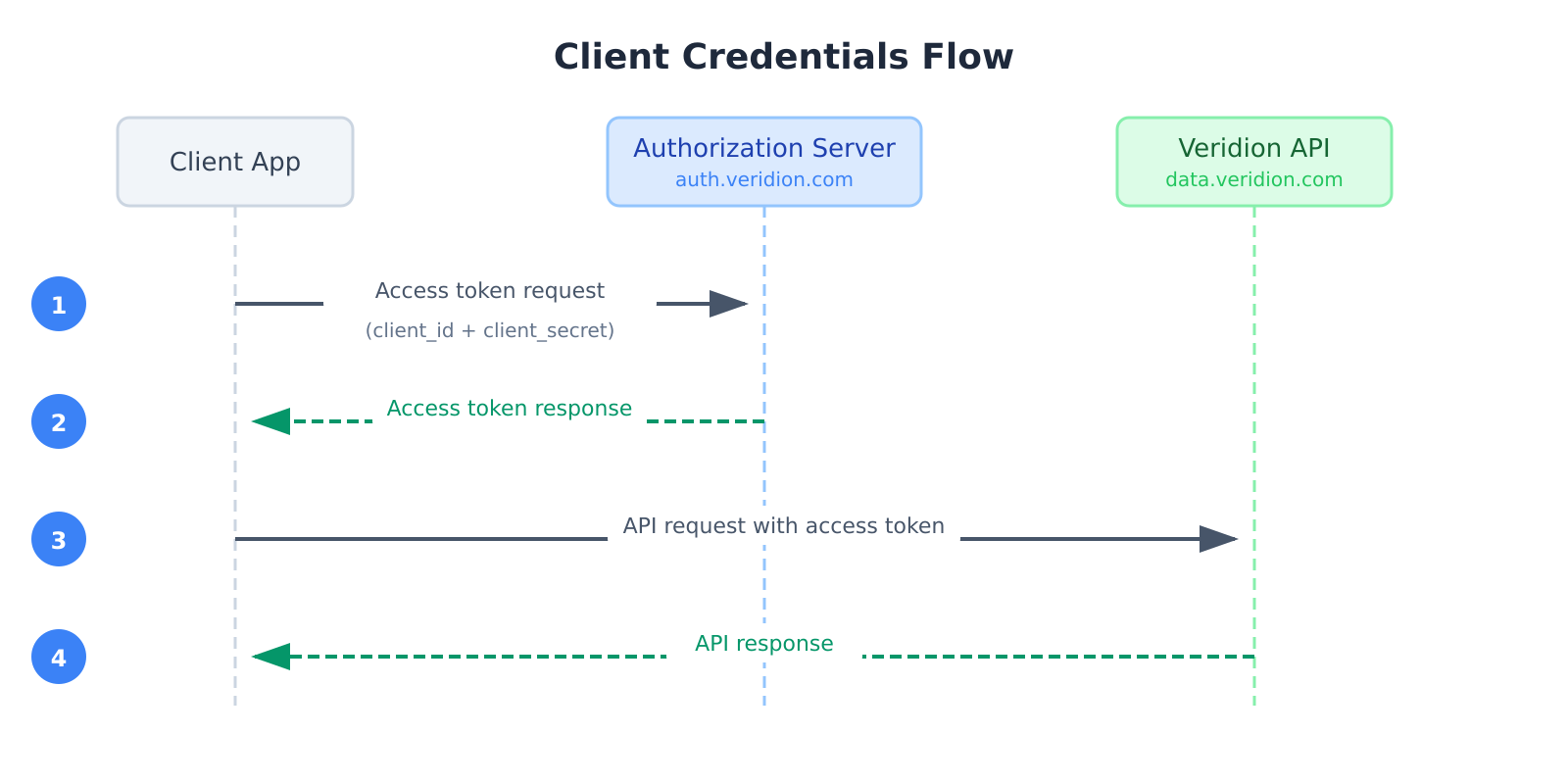
- Your application requests an access token from the Authorization Server using your credentials
- The Authorization Server validates your credentials and returns an access token
- Your application includes the access token in requests to the Veridion API
- The API validates the token and returns the requested data
Prerequisites
To authenticate with Veridion APIs, you will need the following credentials provided by your Veridion representative:
| Parameter | Description |
|---|---|
client_id | Your unique client identifier |
client_secret | Your confidential client secret |
Endpoints
| Purpose | URL |
|---|---|
| Token Endpoint | https://auth.veridion.com/oauth2/token |
| Discovery Document | https://auth.veridion.com/.well-known/openid-configuration |
| Veridion APIs | https://data.veridion.com |
Token Structure
A successful authentication request returns a JSON response with the following structure:
{
    "access_token": "TwmfRUlqnvSh3j...",
    "scope": "api:use",
    "token_type": "Bearer",
    "expires_in": 3599
}| Field | Description |
|---|---|
token_type | The type of token issued. Always Bearer. |
expires_in | Token validity period in seconds. Tokens expire after 1 hour (3600 seconds). |
access_token | The token to include in API requests. |
scope | The scope granted to this token. |
Generating a Token
Using Postman
Step 1: Set Up the Token URL
Create a new request in Postman and configure it as follows:
- Method:
POST - URL:
https://auth.veridion.com/oauth2/token
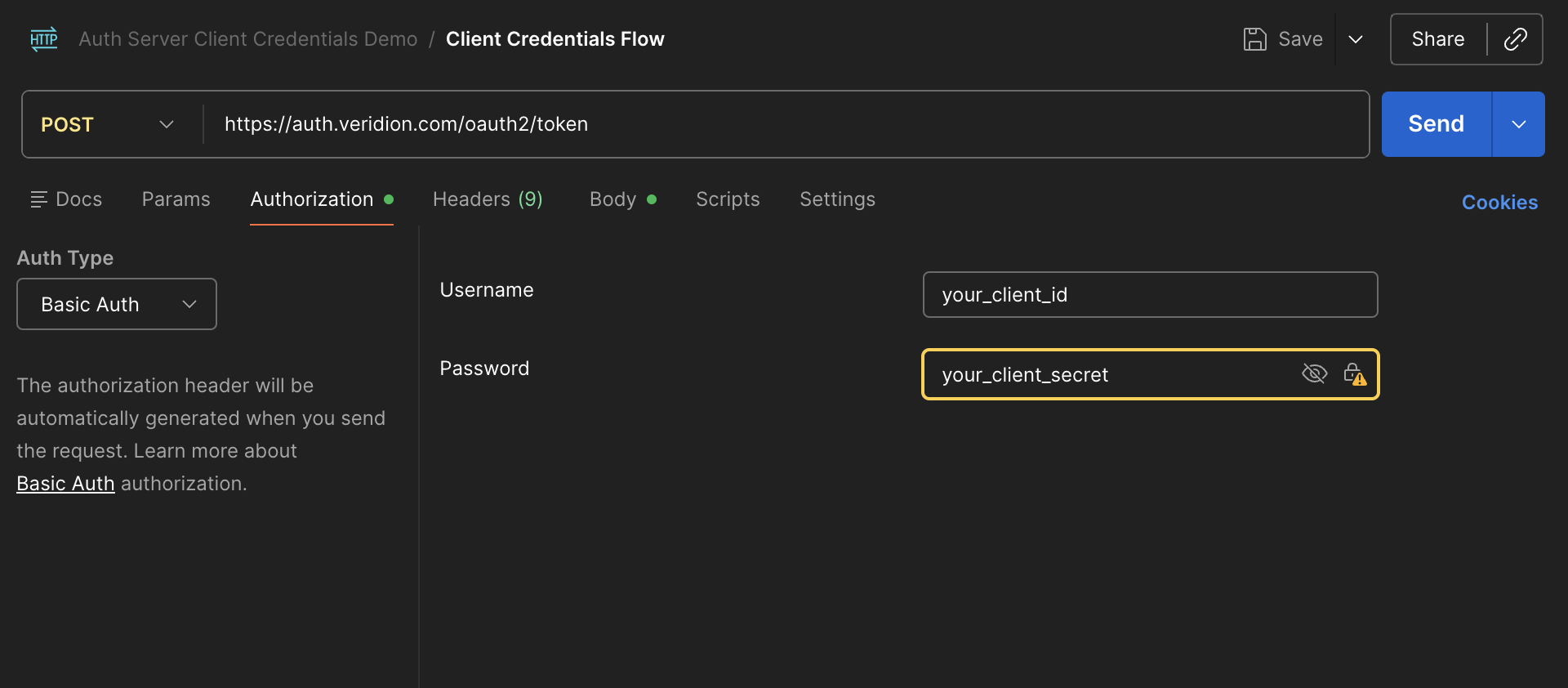
Step 2: Set Up Authentication
- Click on the Authorization tab
- Select Basic Auth from the Type dropdown
- Enter your credentials:
- Username: Your
client_id - Password: Your
client_secret
- Username: Your
Step 3: Set Up the Request Body
- Click on the Body tab
- Select x-www-form-urlencoded
- Add the following key-value pairs:
| Key | Value |
|---|---|
grant_type | client_credentials |
scope | api:use |
Step 4: Request the Token
Click Send. If successful, you will receive a response like this:
{
    "access_token": "TwmfRUlqnvSh3j...",
    "scope": "api:use",
    "token_type": "Bearer",
    "expires_in": 3599
}
Using cURL
curl -X POST https://auth.veridion.com/oauth2/token \
  -u "your_client_id:your_client_secret" \
  -H "Content-Type: application/x-www-form-urlencoded" \
  -d "grant_type=client_credentials&scope=api:use"
Replace your_client_id and your_client_secret with your actual credentials.
Error Handling
| HTTP Status | Body | Meaning | Resolution |
|---|---|---|---|
400 Bad Request | "error": "invalid_scope" | Bad parameters provided | Scope or credentials not properly set. |
401 Unauthorized | "error": "invalid_client" | Invalid client credentials | Double check your client_id and client_secret. |
403 Forbidden | "error_description": "account has not been setup.", "error": "access_denied" | Your account has not been activated | Contact your Veridion representative |
403 Forbidden | "error_description": "account has been disabled", "error": "access_denied" | Your account is not enabled | Contact your Veridion representative |
Calling the API
Once you have obtained an access token, include it in the Authorization header of your API requests.
Using Postman
Step 1: Set Up the Request
- Method:
POST(or as specified by the endpoint) - URL:
https://data.veridion.com/match/v5/companies(or your desired endpoint)
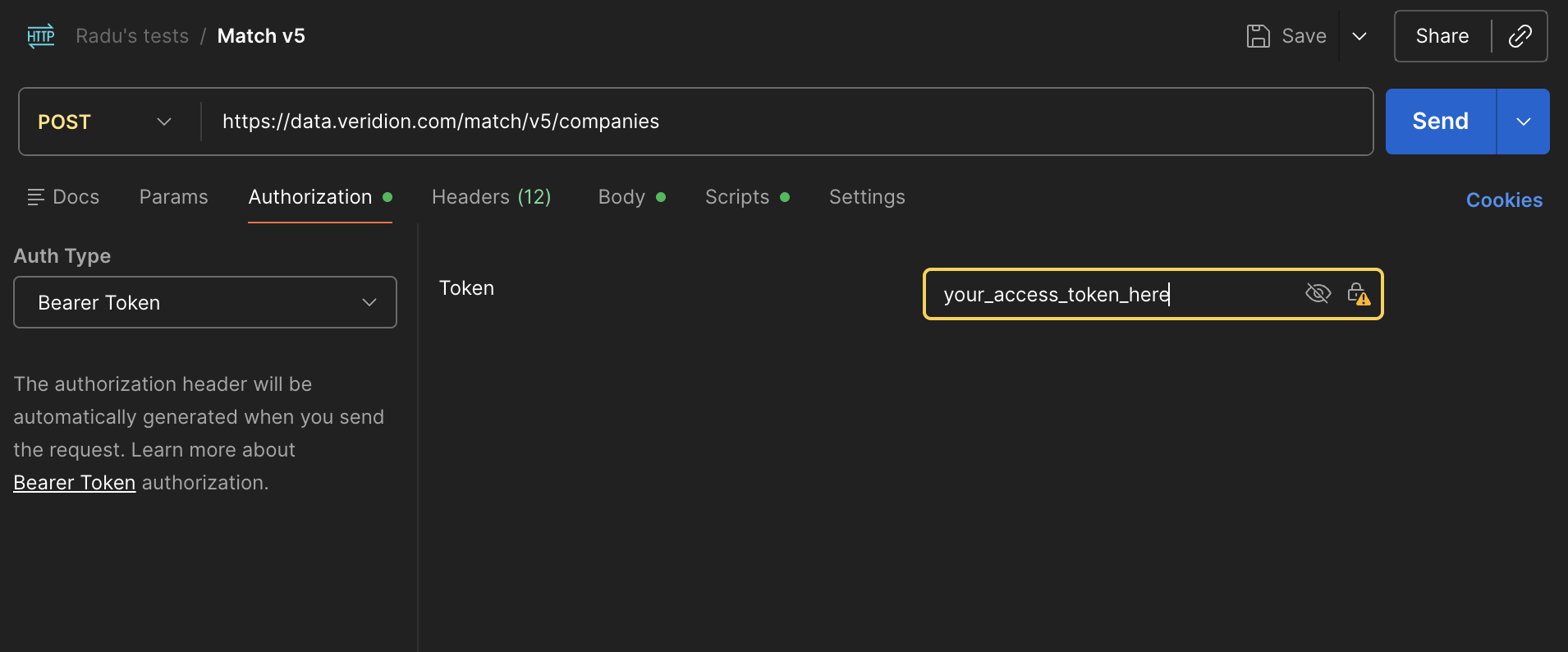
Step 2: Add the Authorization Header
- Click on the Authorization tab
- Select Bearer Token from the Type dropdown
- Paste your access token in the Token field
Step 3: Send the Request
Add your request body (if required) and click Send.
Using cURL
curl -X POST https://data.veridion.com/match/v5/companies \
  -H "Authorization: Bearer your_access_token" \
  -H "Content-Type: application/json" \
  -d '{
    "your": "request body"
  }'
Replace your_access_token with the token you obtained from the authentication step.
Error Handling
| HTTP Status | Meaning | Resolution |
|---|---|---|
401 Unauthorized | Invalid or expired token | Generate a new access token |
403 Forbidden | Insufficient permissions | Verify your account has access to the requested resource. Contact your Veridion representative if you believe this is an error. |
Troubleshooting
If you are unable to obtain a token, check the following:
- Invalid credentials: Verify that your
client_idandclient_secretare correct - Invalid scope: Ensure you are requesting the
api:usescope - Invalid URL: Confirm you are using
https://auth.veridion.com/oauth2/token
If you are receiving errors when calling the API:
- 401 error: Your token may have expired. Generate a new token.
- 403 error: Your account may not have permission to access the requested resource. Contact your Veridion representative.
Best Practices
- Cache your tokens: Access tokens are valid for 60 minutes. Cache and reuse them rather than requesting a new token for every API call.
- Handle expiration gracefully: Implement token refresh logic in your application to automatically obtain a new token before or when the current one expires.
- Keep credentials secure: Never expose your
client_secretin client-side code, logs, or version control.